
An immigration CRM holds more sensitive data than almost any other business software. Passport scans, bank statements, police certificates, family details, and in many offices the logins to clients' government portal accounts. All of it sits behind one thing: a staff member's password.
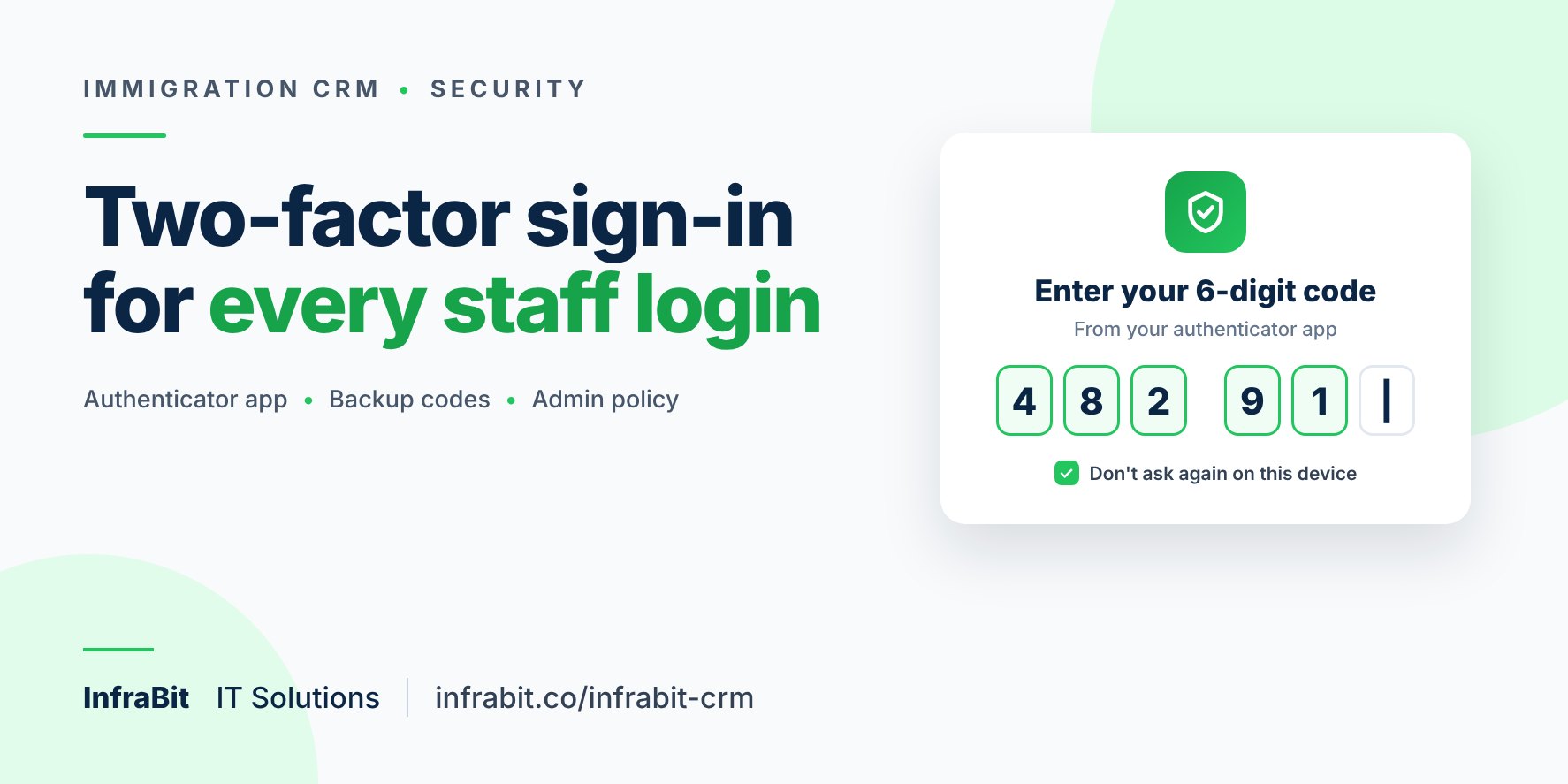
Passwords get reused, guessed, phished and leaked. That is why InfraBit Immigration CRM now has two-factor authentication (2FA) for every staff login. After the password, the CRM asks for a six-digit code from an app on the staff member's phone. Someone who has stolen a password still cannot get in without that phone.
This article explains what changed, how staff switch it on in about two minutes, and what the office owner controls.
Why an immigration CRM needs 2FA
Most attacks on small businesses do not involve clever hacking. They involve a password that was used somewhere else and leaked, a fake login page sent by email, or a counsellor who wrote their password on a sticky note. Once someone is inside the CRM with a real staff account, every file that staff member can see is exposed.
Two-factor authentication closes that door. In a 2023 study of Microsoft accounts, researchers found that multi-factor authentication reduced the risk of an account being compromised by 99.22%, and by 98.56% even for accounts whose password had already leaked. For a consultancy, the client files behind those logins are the business. We cover the wider picture in how hackers target immigration consultancies.
What's new: My Profile and two-factor sign-in
Every staff member now has a My Profile page, opened by clicking their avatar. It brings their own account settings into one place:
- Profile: photo, mobile number, address and emergency contact. Work details such as role, department and joining date are shown for reference and stay managed by HR.
- Password: change your own password. The current password is required.
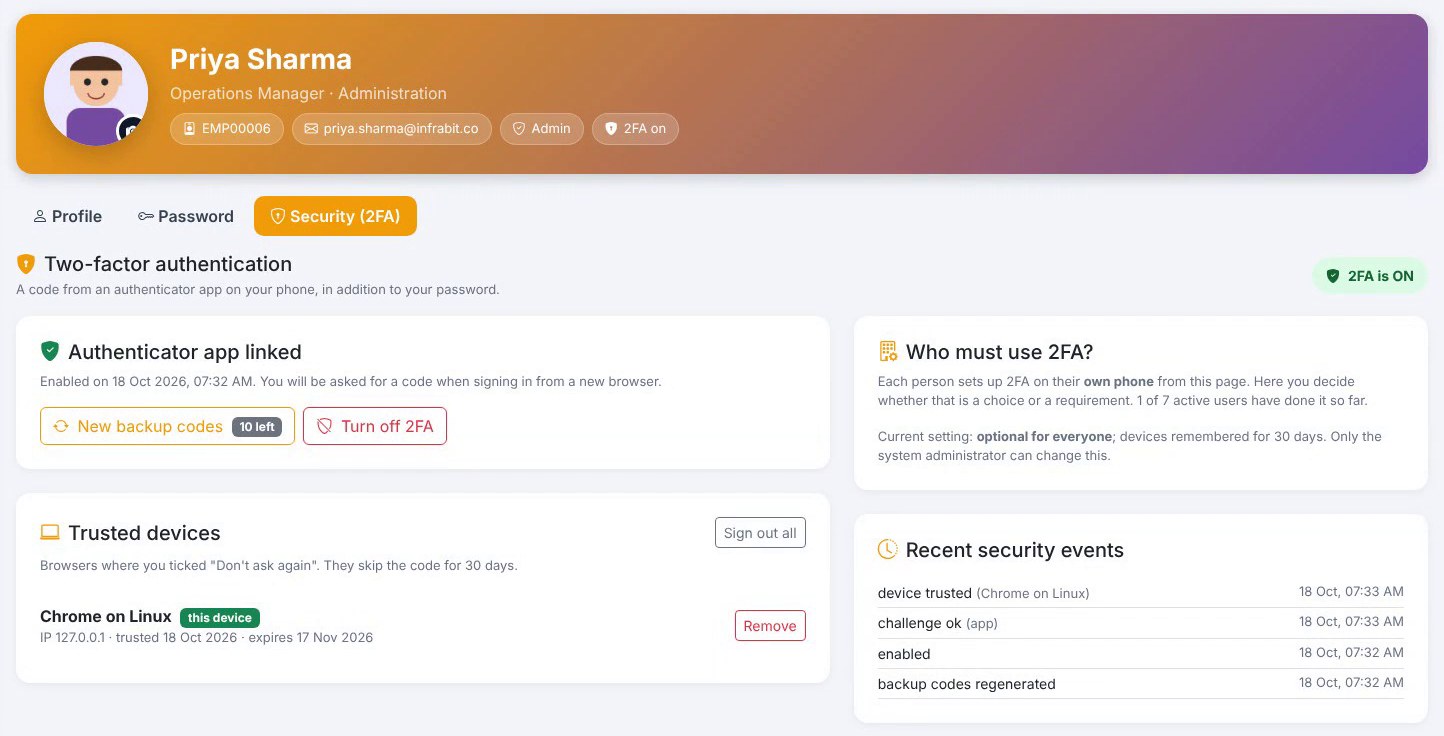
- Security: switch on two-factor authentication, see trusted devices and manage backup codes.
- Activity: your recent sign-ins, with browser, operating system, IP address and time, so you can spot a login that was not you.
How staff switch on 2FA
- Install a free authenticator app: Google Authenticator, Microsoft Authenticator, Authy, 1Password or Bitwarden.
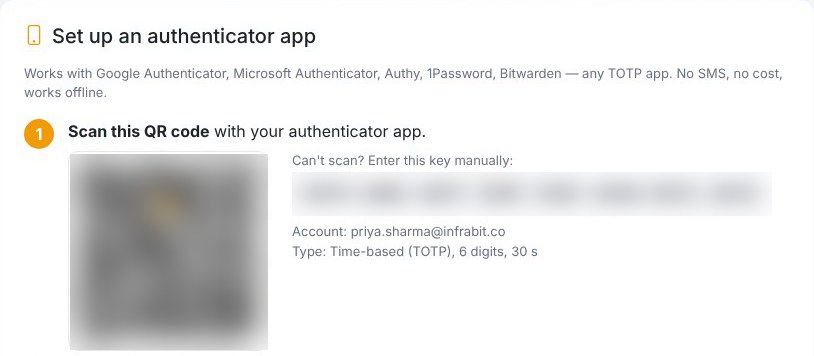
- In the CRM, open My Profile → Security and start the setup. A QR code appears.
- Scan the QR code with the app. It starts showing a six-digit code that changes every 30 seconds.
- Type the current code into the CRM to confirm.
- Save the 10 backup codes the CRM shows. Each one works once and gets you in if your phone is lost. Copy them, download them as a text file or print them. They are not shown again.
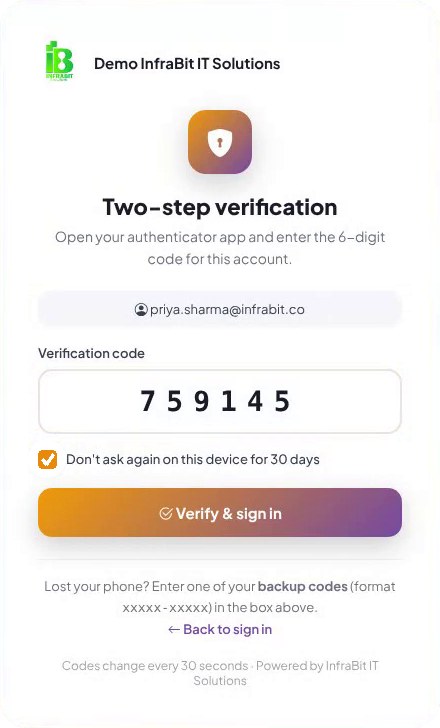
From then on, signing in is the password plus the code from the app. On a computer the staff member uses every day, they can tick "Don't ask again on this device" so the code is not needed at every login.
What the office owner controls
2FA only protects the accounts that use it. So the administrator decides whether it is a choice or a rule, with three settings:
- Optional: nobody is forced; anyone can switch it on for themselves.
- Administrators must use it: admin accounts are asked to set it up at their next login. Other staff are not affected.
- Everyone must use it: every staff login is asked to set it up at the next sign-in, and cannot reach the rest of the CRM until they do.
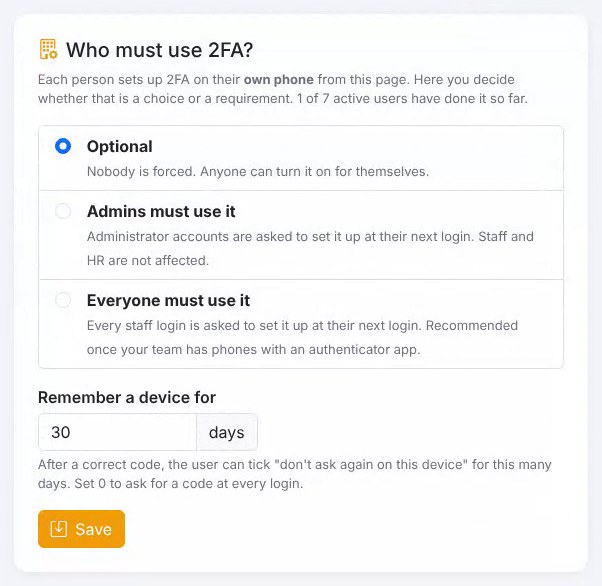
The administrator also sets how long a trusted device is remembered, from 0 to 365 days. Set it to 0 and the CRM asks for a code at every single login.
Two safeguards stop the setting from backfiring:
- You cannot lock yourself out. The CRM will not let you make 2FA compulsory until your own administrator account has it set up.
- A lost phone is a two-minute fix. In Manage Users, each staff member shows a 2FA badge. If someone loses their phone and their backup codes, the administrator resets their 2FA, they sign in with their password and set it up again on the new phone.
The Security tab also shows how many active users have switched 2FA on, so you can see who still needs to do it.
Protection built in
- Wrong-code limit: after five wrong codes the sign-in is cancelled and the person goes back to the login page.
- No replays: a code that has been used once cannot be used again.
- Encrypted secrets: the secret behind each staff member's codes is stored encrypted, and backup codes are stored hashed, the same way passwords are.
- Revocable devices: staff can remove any trusted device from My Profile at any time, for example after using a shared computer.
- Security log: 2FA events, such as switching it on or off and an administrator reset, are recorded for each user and also appear in the CRM's audit log.
Why an authenticator app and not SMS codes
SMS codes cost money per message, fail when the network is weak, and can be stolen through SIM-swap fraud. Authenticator apps cost nothing, work with no signal at all, and the codes never travel over the phone network. The CRM uses the open standard for these codes (TOTP, RFC 6238), so it works with any of the common apps rather than locking you into one.
What 2FA covers, and what it does not
Two-factor authentication protects staff logins to the CRM. The client portal and the B2B partner portal have their own separate sign-in and are not part of this change.
2FA also does not replace good habits. It stops a stolen password from being used, but staff should still use strong passwords, never share accounts, and lock their screen when they step away.
Rolling it out in your office
- Start with yourself. Set up 2FA on your own administrator account first. The CRM requires this before you can enforce it.
- Then the administrators. Switch the policy to "Administrators must use it". Admin accounts can see and change the most, so they matter most.
- Then everyone, after a week. Tell staff to install an authenticator app in advance, then switch the policy to "Everyone must use it". Each person is guided through setup at their next login.
- Keep backup codes safe. Ask staff to print theirs or keep them in a password manager, not in a photo on the same phone.
- Pick a sensible trusted-device period. Around 30 days suits office computers. Use 0 if staff share machines.
If you are still choosing an immigration CRM, security belongs on your checklist next to case tracking and the client portal. Our comparison of the best immigration CRM software in India sets out the rest of that checklist.
Frequently asked questions
Does two-factor authentication slow staff down?
Barely. Typing a six-digit code takes a few seconds, and on a computer they use every day staff can tick "Don't ask again on this device" so the code is only needed again after the period the administrator sets.
What happens if a staff member loses their phone?
They sign in with one of their 10 backup codes, each of which works once. If they have lost those too, an administrator resets their 2FA from Manage Users, and they set it up again on the new phone.
Which authenticator apps work with the CRM?
Any app that supports standard time-based codes (TOTP), including Google Authenticator, Microsoft Authenticator, Authy, 1Password and Bitwarden. All are free to install.
Do we pay for SMS messages?
No. The CRM uses authenticator apps, not SMS, so there are no per-message charges and no third-party service involved. The app works even without mobile signal.
Can we make 2FA compulsory for all staff?
Yes. The administrator can make it optional, required for administrators only, or required for everyone. When it is required, anyone who has not set it up is taken to the setup page at their next sign-in.
Does 2FA protect the client portal too?
No. Two-factor authentication covers staff logins to the CRM. The client portal and the B2B partner portal use separate sign-in systems.
Sources: Meyer et al., How effective is multifactor authentication at deterring cyberattacks? (Microsoft Research, 2023) · RFC 6238: TOTP, Time-Based One-Time Password Algorithm (IETF)