
In most immigration consultancies, email lives in Outlook and the case lives in the CRM. A client replies with a question about their file, the email sits in info@ until someone notices it, and the counsellor who owns the case never sees it. When they finally reply, nobody else in the office knows what was said.
InfraBit Immigration CRM now has an email inbox built in. Through a direct Outlook (Microsoft 365) integration, the firm's mailbox connects to the CRM, every email in and out is pulled into the CRM, and staff read, reply and write new emails without leaving the client's case. This article explains how it works, who sees what, and what you need to set it up.
Why email belongs inside the CRM
- Client emails get missed. A reply in a shared mailbox is everyone's job, so it often becomes no one's.
- The case history is split. Calls and notes are in the CRM, but the emails that matter, such as document requests and fee confirmations, are only in Outlook.
- Staff changes lose context. When a counsellor leaves, the conversations they had with clients are hard to find.
- Two people answer the same client. Without one shared view, it is easy to send conflicting replies.
How the Outlook email integration works
The CRM connects to your firm's mailbox, such as info@yourfirm.com, through Microsoft 365. It reads both the Inbox and Sent Items, so every conversation shows both sides in the right order.
- Every email is linked to the case. The sender's address is matched to a client, an enquiry or a B2B partner, and the conversation is linked to that record automatically.
- Unknown senders become enquiries in one click. An email from a new address goes to the "Unlinked" list, where a team lead can link it to an existing record or create a new enquiry from it.
- Conversations stay together. Emails are grouped into threads the same way Outlook groups them, and replies sent from the CRM keep the original quoted below, so the client's own email app shows one continuous conversation.
- Replies appear on the timeline. Every email sent from the CRM is recorded on the client's or enquiry's timeline, alongside the rest of their history.
- Find it from anywhere. The inbox is on an Email tab on the dashboard, with an unread count, and on its own full page. Each client and enquiry page has an "Email thread" button.
Writing emails in the CRM
- Reply, Reply all, Forward and New email, with attachments in both directions.
- A formatting toolbar like Gmail's: bold, italic, underline, text and highlight colours, bulleted and numbered lists, and links. Text pasted from Word keeps its basic formatting.
- Drafts save automatically as you type and appear in a Drafts tab. A draft is private: only the person who wrote it can see it.
- Full-screen writing for longer emails, with one click to return to normal size.
Outlook and the CRM stay in step
- Opening an email in the CRM can mark it as read in Outlook too, and read or unread changes made in Outlook come back to the CRM.
- Emails sent from the CRM appear in the mailbox's Sent Items in Outlook.
- Deleting an email in Outlook does not delete the CRM's copy, because it is part of the client's case history. Archiving a thread in the CRM only hides it in the CRM and does not touch Outlook.
- New mail is picked up every couple of minutes while staff are using the CRM, and a scheduled job can keep it syncing overnight.
More than one mailbox: admissions, support and more
Many consultancies use several addresses: info@ for general enquiries, admission@ for student files, support@ for existing clients. All of them can be connected to the same CRM inbox.
- Each mailbox is a shared team inbox. An administrator adds the address once, gives it a name and signature, and ticks the staff who work in it. Team members see all of that mailbox's mail and can assign it.
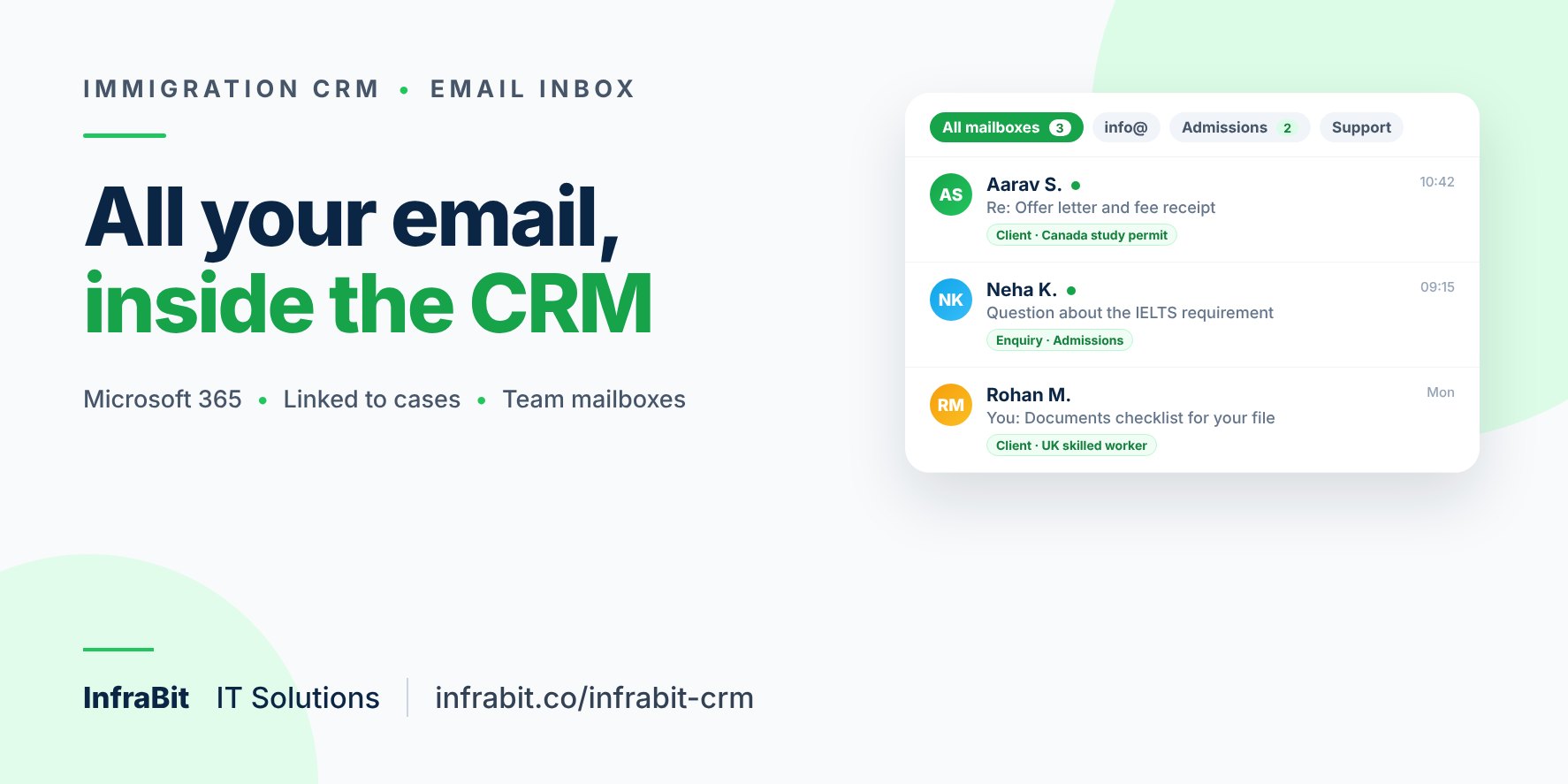
- One screen for all of them. Filter buttons show All mailboxes, info@, Admissions, Support and so on, each with its unread count.
- Replies go out from the right address. A client who wrote to admission@ gets the reply from admission@, with the Admissions signature.
- New emails have a From choice limited to the mailboxes that staff member belongs to. Nobody can send as a department they are not part of.
- Automatic emails stay as they are. Enquiry acknowledgements, invoices and reminders keep going from the main address.
Who sees which email
Client emails are confidential, so the inbox follows the same rules as the rest of the CRM, and the same rules as the WhatsApp inbox:
- A counsellor sees the emails of their own cases. A thread linked to a client or enquiry is visible to the counsellor assigned to that record.
- Reassign the case and the emails move with it. Visibility is checked live against the case assignment.
- Team leads see everything. Staff with the "See all email threads" permission see every thread and every mailbox, and assign new mail.
- Everything is logged. The CRM's audit log records who sent which email, who opened which thread, and who assigned or linked it.
Access to the inbox is a permission set per person in Manage Permissions, and staff logins can be protected with two-factor authentication.
What you need to set it up
- Microsoft 365 email on your firm's domain. This version works with Microsoft 365 (Outlook) mailboxes. Gmail and other IMAP mailboxes are not supported yet.
- A one-time change by your Microsoft 365 administrator: giving the CRM's existing Microsoft connection permission to read the mailbox, not only send from it. The setup checklist in the CRM lists the exact steps, and the administrator can limit the connection to only the mailboxes the CRM uses.
- A few clicks in the CRM: switch the inbox on in Communication Settings, test the connection and run the first sync, which loads the last 30 days of mail.
Email works best alongside your other channels: WhatsApp for quick messages, the client portal for document checklists, and automation for welcome emails and reminders, all recorded against the same case. If you are comparing systems, our guide to the best immigration CRM software in India covers the rest of the checklist.
Frequently asked questions
Can we send and receive all our emails from the CRM?
Yes, for the Microsoft 365 mailboxes you connect. Every email that arrives in a connected mailbox is pulled into the CRM, and staff can reply, forward and write new emails from the CRM. Emails sent from the CRM also appear in the mailbox's Sent Items in Outlook.
Does it work with Gmail, or only Outlook?
Not yet. The current version supports Microsoft 365 (Outlook) mailboxes only. Gmail and other IMAP mailboxes are not supported.
Will the client see the reply from our company address?
Yes. Replies go out from the mailbox the client wrote to, such as info@ or admission@, with that mailbox's signature, and the original email is quoted so the conversation stays in one thread in the client's email app.
Can a counsellor read other counsellors' client emails?
No. A counsellor sees the email threads of the clients and enquiries assigned to them. Team leads with the "See all email threads" permission can see everything. In a shared team mailbox such as admission@, all members of that mailbox see its mail.
If someone deletes an email in Outlook, is it lost from the CRM?
No. The CRM keeps its copy as part of the client's case history. There is no delete button in the CRM inbox; archiving a thread only hides it in the CRM.
Does the CRM read the Junk folder?
No. The CRM reads the Inbox and Sent Items. If Outlook's spam filter moves a client's email to Junk, it appears in the CRM once someone moves it back to the Inbox in Outlook.